Moving stock between yards
When you move stock from one of your branches to another in Buying and Stock.
Raise a stock transfer
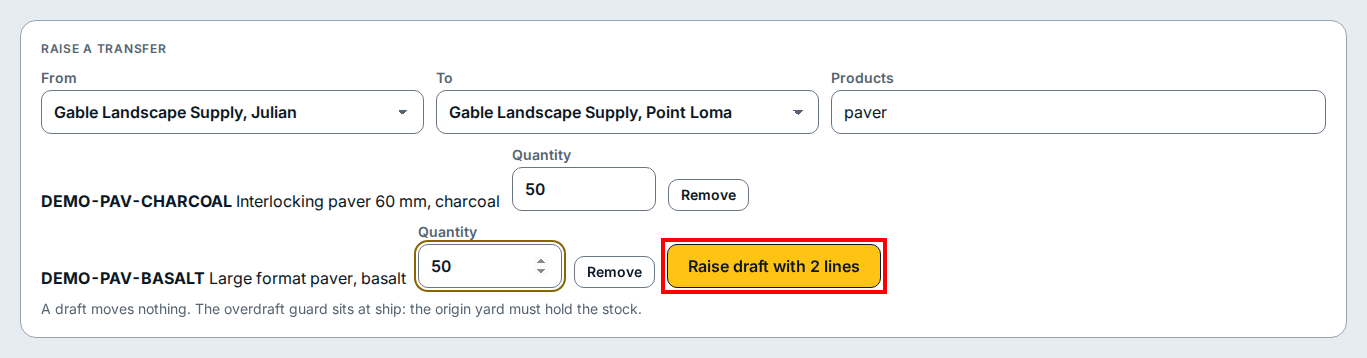
- In Buying and Stock, open Inventory and click the Transfers tab to open the Raise a transfer form.
- Choose the sending branch in From and the receiving branch in To.
- Type a product word or SKU in Products and click each matching item in the list to add it as a transfer line.
- Type the amount to move in Quantity on each line (or click Remove to drop a line from the transfer).
- Click Raise draft with 2 lines (which shows your line count) to create the draft transfer, then ship it when the truck loads at the sending yard and receive it when the truck unloads at the receiving yard.
If you see this
- A draft moves nothing. The overdraft guard sits at ship: the origin yard must hold the stock. Raising a draft transfer does not deduct inventory yet; the sending branch must have the full quantity on hand when the transfer is marked shipped.