Staging a pick
When you set down a pulled order in a staging bay so the counter or driver can find it.
Record where you staged the pick
- After you click Save pick on a pulled order, the Stage this pick sheet opens at the bottom of your phone screen.
- Click a bay shortcut (Bay 1, Bay 2, Bay 3, or Dock A), or type the location under Where did you put it?.
- Click Stage to save the staging spot and let the counter know the order is ready.
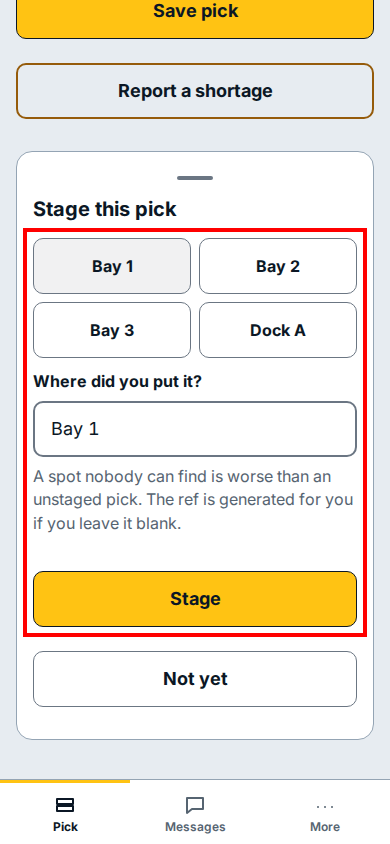
- If you have not parked the skids in a bay yet, click Not yet at the bottom of the sheet to leave the order unstaged for now.
If you see this
- Where did you put it?: holds the bay or dock name where you parked the order; clicking Bay 1, Bay 2, Bay 3, or Dock A fills this box for you.
- Report a shortage: sits above the Stage this pick sheet so you can record a missing item before staging the order.
- Not yet: closes Stage this pick without marking the order staged.