Writing a purchase order
When you write a new purchase order for a supplier in Buying and Stock.
Draft and place a purchase order
- On the Purchase orders page, click New purchase order to open the New purchase order form.
- Choose the supplier in Supplier and check that your receiving branch is selected in Ship to.
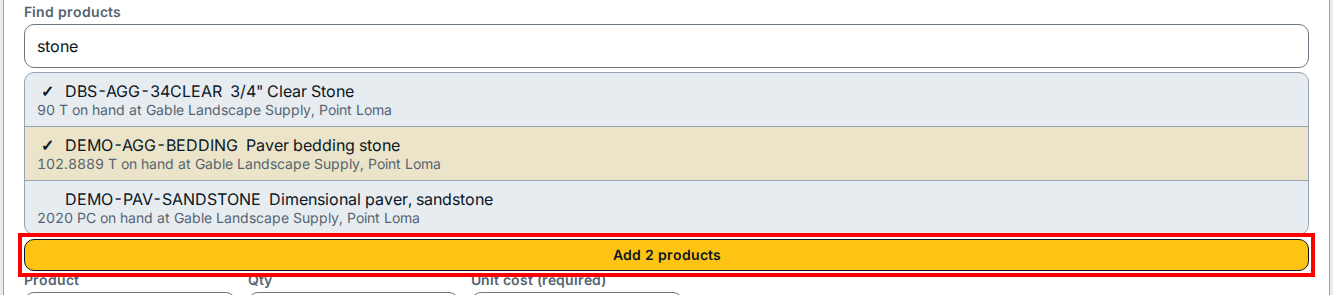
- To add several products at once, type a word or SKU in Find products, tick each matching product in the list, and click Add 2 products (which shows how many matches you ticked).
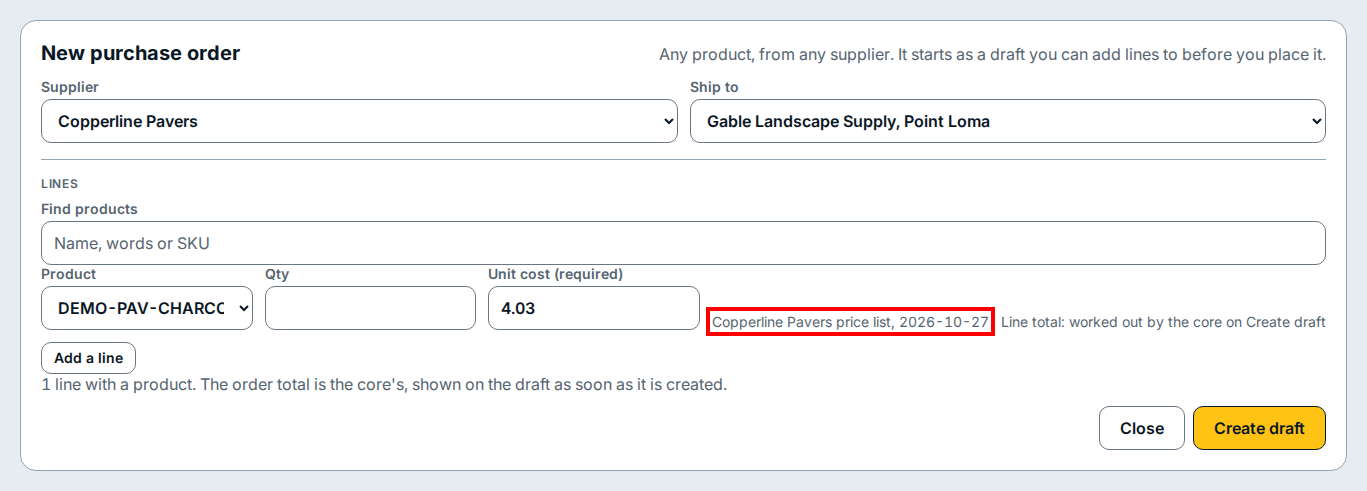
- For each line (or a single line added with Add a line), check the Product, type the order quantity in Qty, and check Unit cost (required), which pre-fills from the supplier's price list note beside the box.
- Click Create draft at the bottom right to save the draft purchase order.
- On the draft page that opens, check the expected arrival date and delivery choice, then click Place order to move the purchase order to Ordered.
If you see this
- Line total: worked out by the core on Create draft Line and order totals are calculated when you click Create draft and appear on the saved draft.
- 1 line with a product. The order total is the core's, shown on the draft as soon as it is created. Shows how many lines have a product selected before you save the draft.