Receiving a delivery
When a supplier truck arrives at your yard and you receive its purchase order into stock.
Find the purchase order and receive stock
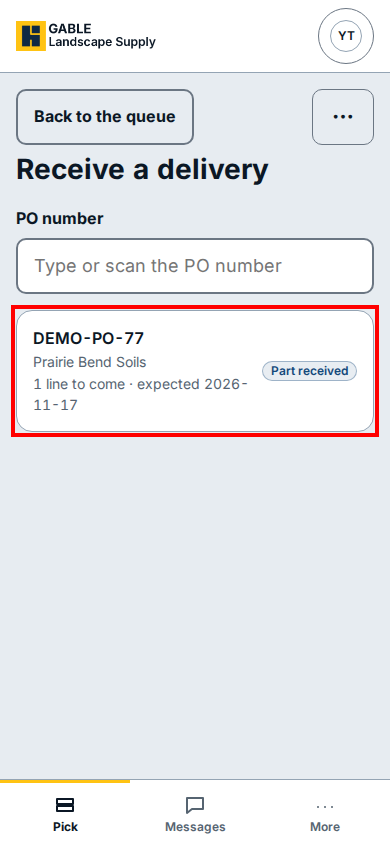
- From the pick queue on your phone, tap Receive to open Receive a delivery.
- Under PO number, click Type or scan the PO number and enter the purchase order number from the supplier's paperwork.
- Click the matching purchase order card below the search box to open its lines.
- On the purchase order screen, enter the count received for each line (or tap the all button when the full quantity arrived), record any damaged units not going into stock, and optionally note where you put the stock away.
- Check the count and receive the items into stock to finish the delivery.
- Click Back to the queue at the top left to return to the pick queue.
If you see this
- Type or scan the PO number: filters the open purchase orders on Receive a delivery so you can open the supplier's order right away.
- Back to the queue: leaves Receive a delivery and returns you to the yard's pick queue.