Adding products
When you add products to a quote.
Search products in any word order and add lines
- In the Products panel of an open quote, click Search products by name, code or category.
- Type the words you know in any order (for example,
paver charcoalto find a charcoal paver).

- Click the matching product row below the search box to add it to the quote. (To browse instead of typing, click a category chip such as Paver or click Browse products.)
- Search again (or click Browse products) to add the next product line.
- In the Products line table, type the quantity for each line and check the unit price and line total. Customer & terms on the right updates the subtotal, sales tax, and quote total right away.
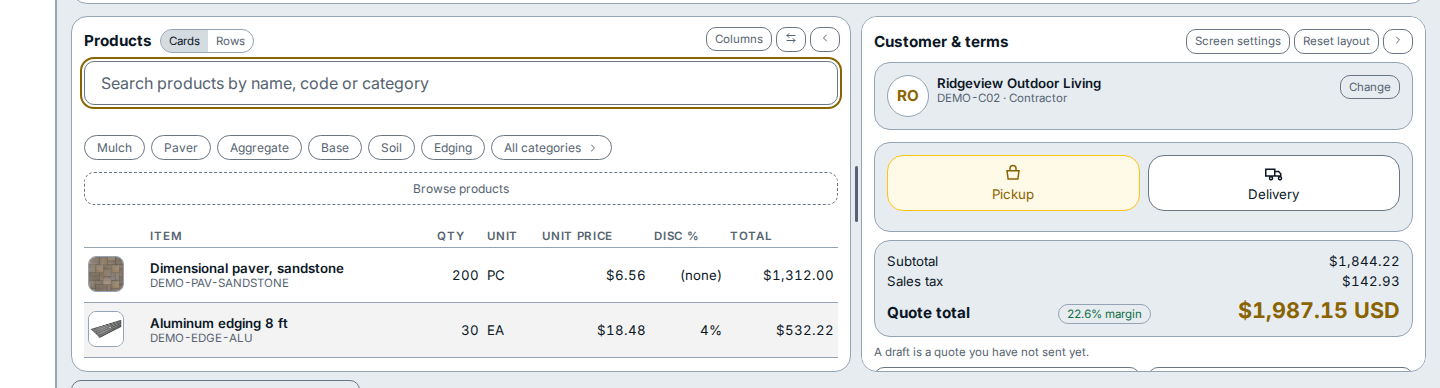
- Choose Pickup or Delivery in Customer & terms, then save your changes at the bottom of the panel.
If you see this
- Search products by name, code or category: matches words anywhere in the product name, SKU code, or category in any word order.
- Browse products: opens the yard catalogue browser when you want to pick items without typing a search.
- Columns: lets you choose which columns appear in the Products line table.