Quote settings
When you open Screen settings on a quote.
Review Quote policy and Screen layout
- At the top right of the Customer & terms panel on an open quote, click Screen settings to open the Screen settings panel.
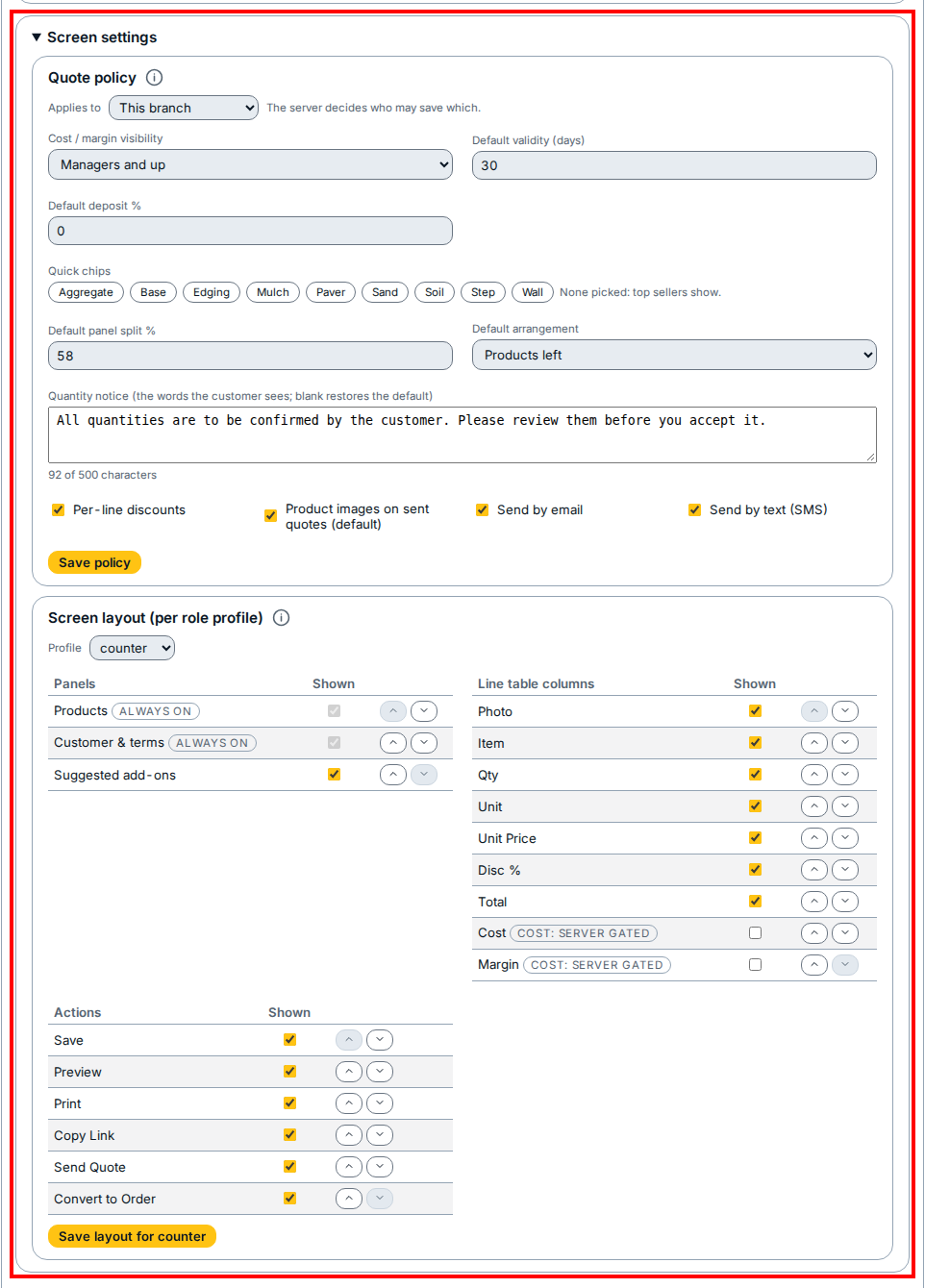
- Under Quote policy, check the Applies to menu to see whether the policy applies to this branch or dealer wide. Changing a quote policy is a manager's decision, and the server decides which roles may save each scope.
- Review the policy rules (or click the info icon beside Quote policy for details), including cost and margin visibility, default quote validity, default deposit percentage, and the customer quantity notice. A manager who updates these rules clicks Save policy.
- Under Screen layout (per role profile), tick which panels, line table columns, and actions appear for the profile, or click the up and down arrow buttons on a row to change its order.
- Click Save layout for counter if you changed the layout for that profile.
- Click Done below the panel to close Screen settings and return to the quote.
If you see this
- Save policy: saves changes to Quote policy. Because changing a policy is a manager's decision, the server only lets permitted roles save branch or dealer rules.
- Save layout for counter: saves the panel, column, and action order under Screen layout (per role profile).