Taking payment
When you have items on a counter sale and need to choose how the customer pays.
Choose how the sale is paid
- Click Payment Cash in the ticket list to open the Payment section.

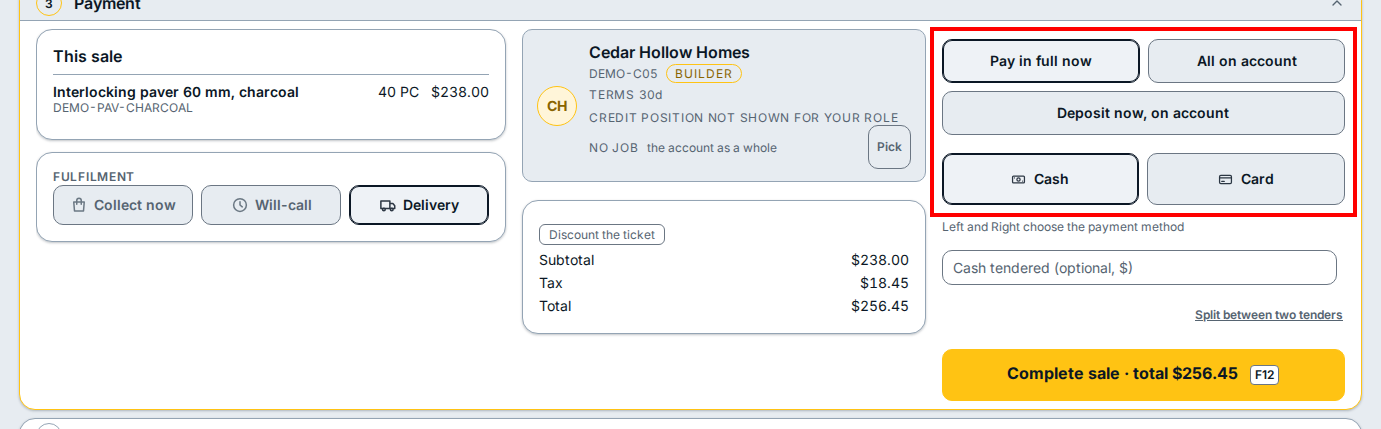
- On an account customer's sale, pick how the balance is handled:
- Pay in full now: the customer pays the whole total at the counter now.
- All on account: the whole total goes on the customer's charge account (pick the customer first in Search name or account #).
- Deposit now, on account: the customer pays a deposit now and the rest goes on their account.
- When taking money now, click Cash or Card (or click Split between two tenders).
- On a walk in sale, the payment choices read Pay in full now, Deposit now, balance due later, and Charge Account (which switches the ticket to an account customer).
- When Cash is picked, type the amount handed over in Cash tendered (optional, $).
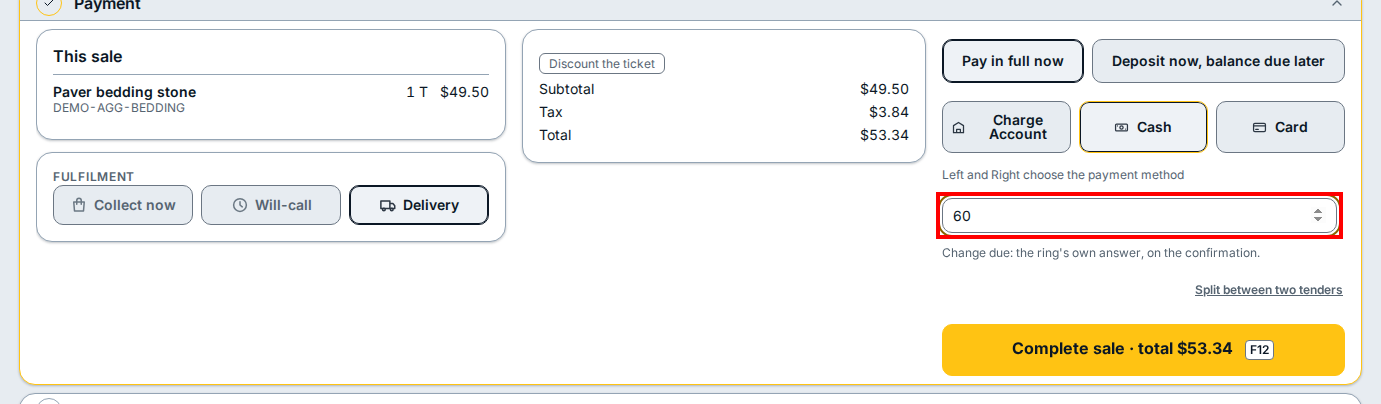
- Click Complete sale · total to record the payment. The change due shows on the confirmation card after you click Complete sale · total.
If you see this
- The register session is closed. Open a session to scan and sell. Click Open Session in the header before ringing or paying a ticket.
- If the complete button tells you to open the session first, click Open Session in the header, then click Complete sale · total.