Picking an order
When you claim an order in Yard Pick and pull its lines in the yard.
Claim and pull an order
- Tap an order card in the queue to open it on your phone, then click Take this pick to claim the order for yourself.
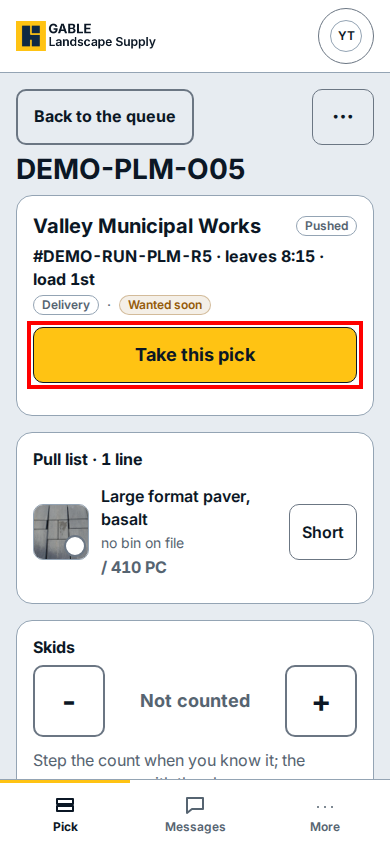
- Under Pull list, pull each item from the yard and tap its product line to mark it pulled (or click Short beside a line if the bin does not have the full quantity).
- Under Skids, tap the plus or minus buttons to record how many skids the pulled order uses.
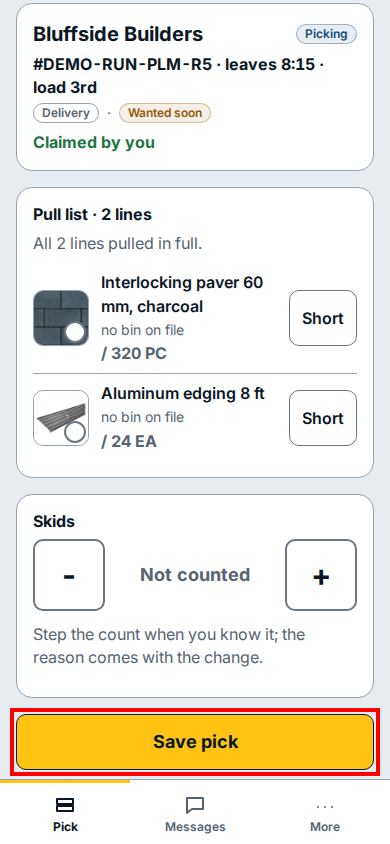
- When every line is pulled, click Save pick at the bottom of the screen to save the pick and open the staging sheet.
- Click Back to the queue at the top left if you need to return to the queue without saving.
If you see this
- Claimed by you: appears on the order card after you click Take this pick so the rest of the yard knows you are pulling it.
- All 2 lines pulled in full.: every line on the Pull list has been marked pulled and the order is ready for Save pick.
- Not counted: shown under Skids until you tap the plus button to record the skid count.