The second screen
When you want to keep the Day board or Schedule open in its own window on a second monitor.
Open and use the second screen
- On the main Dispatch board header, click Open on second screen.
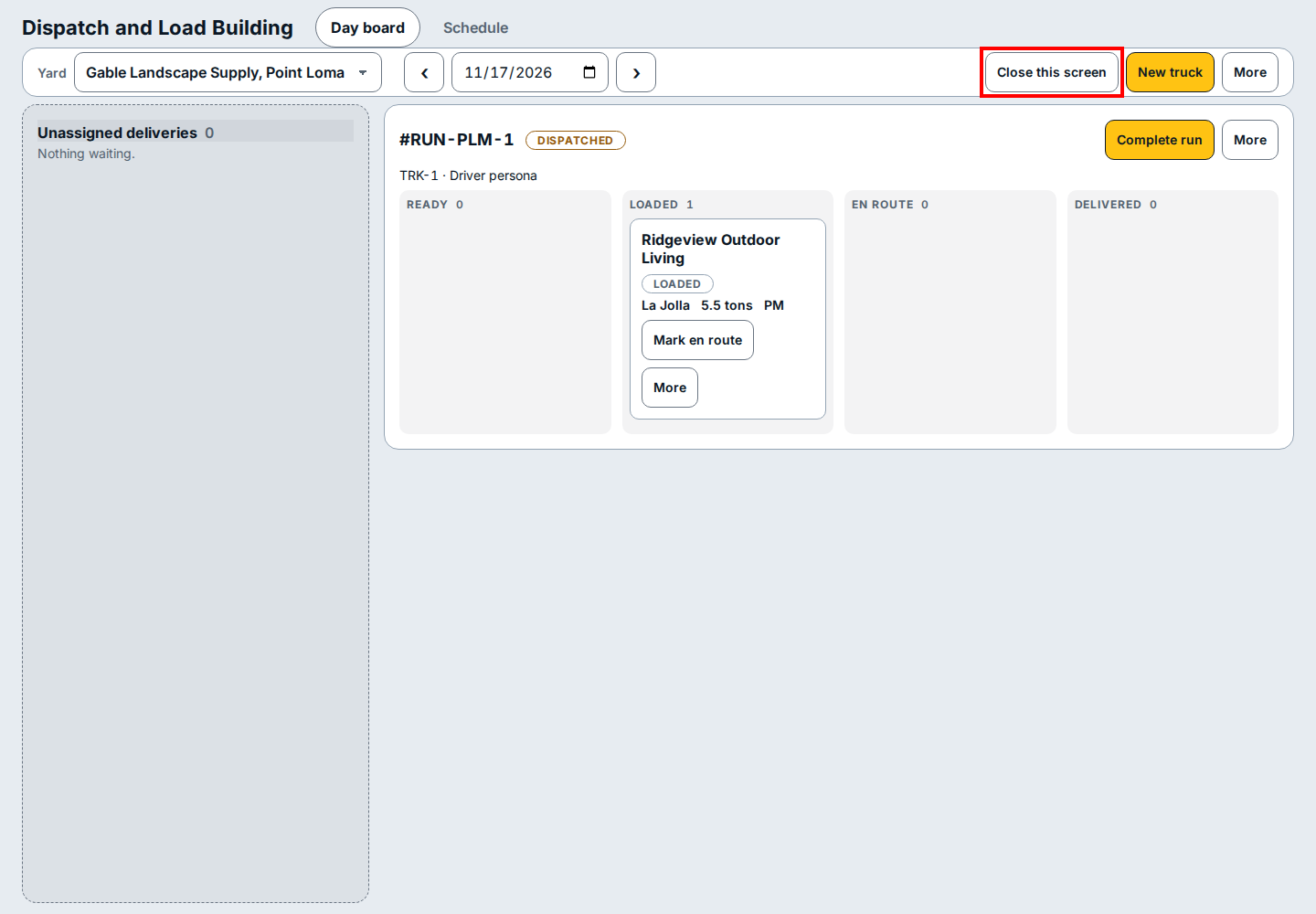
- A separate Dispatch and Load Building window opens on the Day board view.
- Click Day board or Schedule at the top of the window to switch views, or click New truck to add another run from the second screen.
- Watch each run (such as #RUN-PLM-1) move stops across the four lanes (Ready, Loaded, En route, and Delivered), or click Mark en route and Complete run as the truck progresses.
- Click Close this screen at the top right to close the second monitor window and return to the main dispatch board.
If you see this
- Nothing waiting. Appears under Unassigned deliveries on the left when every delivery for the selected yard is already on a truck.
- Dispatched. Appears beside the run number once the run has been sent out and its stops have moved to the Loaded lane.