Tracking a purchase order
When you send a placed purchase order to the supplier and track its stages through arrival.
Send and track the order
- Open the purchase order from the Purchase orders table on the Purchase orders page.
- Once the order is placed, click Send to supplier to email the order to the supplier and move it to sent.
- As the supplier confirms the delivery date and ships the load, advance the
order and read the numbered Order status list (
Drafted,Ordered,Sent to supplier,Confirmedfor the promised date with their reference, and In transit).
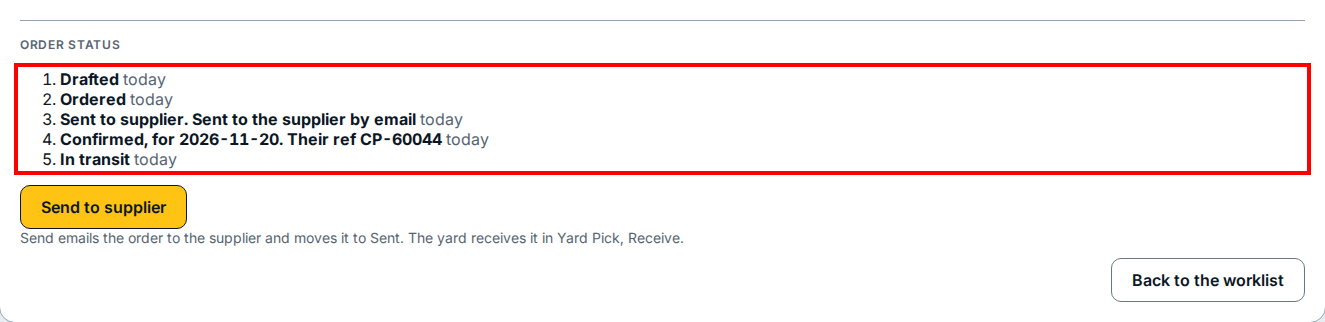
- When the supplier's truck reaches your yard, the yard team receives the purchase order into stock in Yard Pick.
- Click Back to the worklist at the bottom right to return to the Purchase orders page.
If you see this
- Send emails the order to the supplier and moves it to Sent. The yard receives it in Yard Pick, Receive. Clicking Send to supplier sends the email right away with no extra address dialog, and the Send to supplier button remains visible below the status list even after the order reaches In transit.
- In transit The supplier has dispatched the shipment and it is on its way to your yard to be received.