The pick queue
When you open Yard Pick on your phone to see which orders are waiting to be pulled.
Read and filter the pick queue
Yard Pick runs on a phone sized screen in the yard and opens straight onto Pick queue.
- Open Yard Pick on your phone to view Pick queue, which lists your yard's orders in departure order.
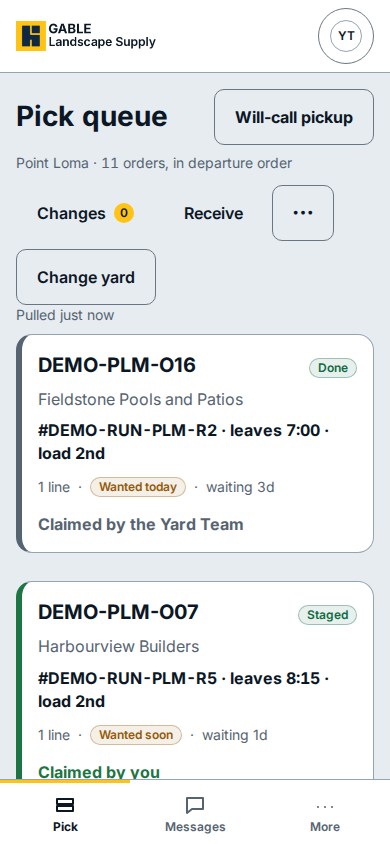
- Check each order card to see the customer, the delivery run and load order, the status badge (such as Staged or Done), and the priority badge (Wanted today or Wanted soon).
- Click Will-call pickup at the top right to filter for customers picking up at the yard, or click Changes to check order updates waiting on the yard.
- Click Change yard if you need to switch to another branch.
- Click any order card in Pick queue to open its pull list.
If you see this
- Claimed by you: you have already taken this pick and it is assigned to you to pull.
- Claimed by the Yard Team: another person on the yard team has claimed this order.
- Wanted today or Wanted soon: marks which orders need to be pulled first for a waiting customer or the next truck run.