Opening a quote
When you open a quote to work on it.
Move around a quote's work area
- Click a quote row in the list (or click New Quote) to open the Quote work area.
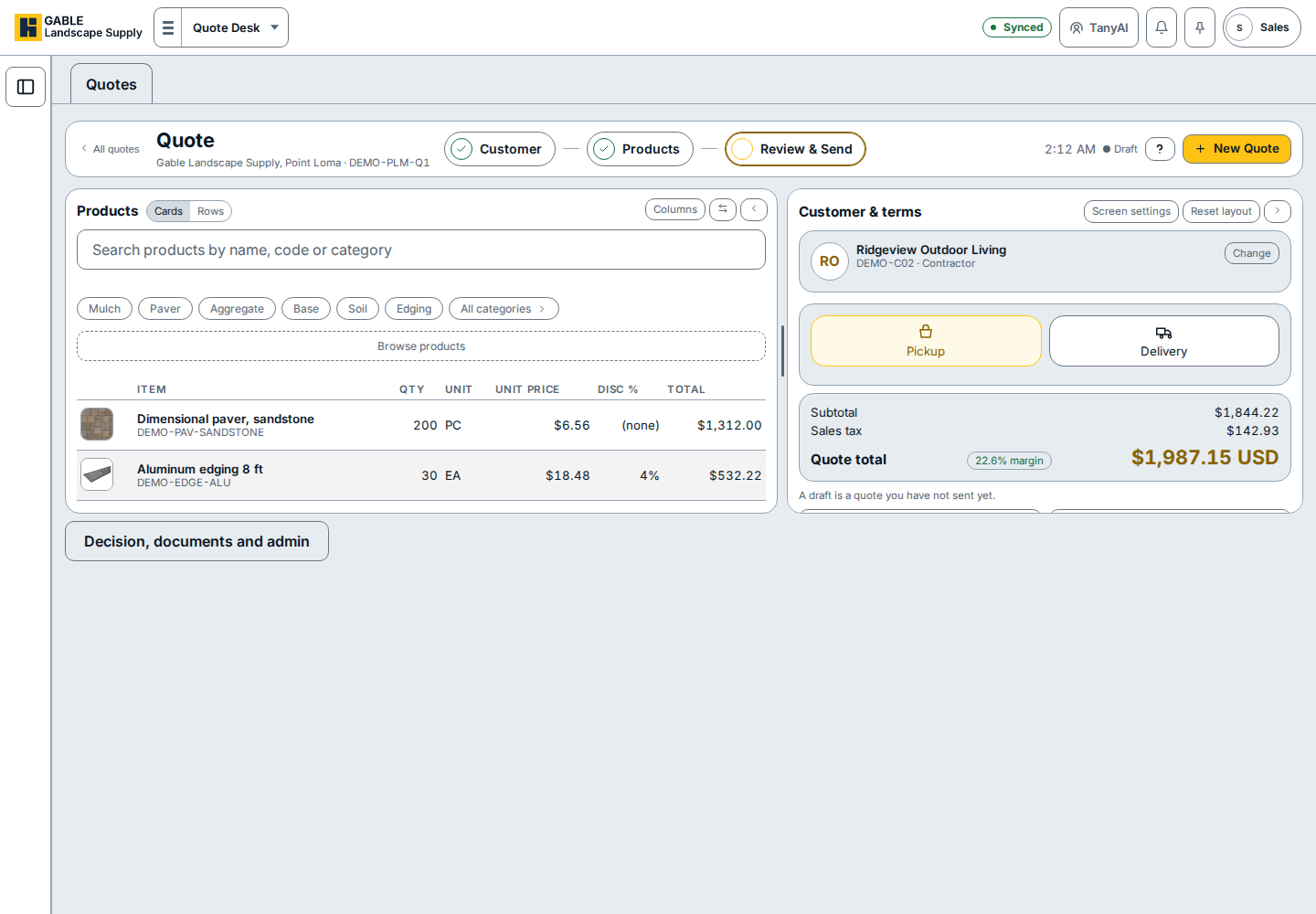
- Check the three section buttons across the Quote header bar: Customer, Products, and Review & Send. Click a section button to jump to that step.
- In the Products panel on the left, review the quote's product lines or click Cards or Rows to switch how the list is shown.
- In the Customer & terms panel on the right, check the customer (or click Change on the customer card to pick another customer), choose Pickup or Delivery, and review the quote total.
- Scroll to the bottom of Customer & terms to save the draft or send the quote to the customer.
- Click Decision, documents and admin below Products when you need to record the customer's decision or run quote checks.
- Click All quotes at the top left of the Quote header bar to return to the quote list.
If you see this
- Customer and Products: when both section buttons show a checkmark, the quote already has a customer and at least one product line, so Review & Send is the open step.
- Reset layout: sits beside Screen settings at the top right of Customer & terms and restores the default panel layout if you swapped or collapsed panels.
- Decision, documents and admin: opens the section below Products for recording whether the customer accepted or declined the quote.