Delivering a stop
When you drive to a delivery stop and record proof of delivery on your phone.
Drive to the stop and sign for the delivery
- On the Stop 1 screen, check the customer's address and the items under On the truck · weight not recorded, then click Open in maps if you need directions.
- Click Mark en route when you leave for the stop.
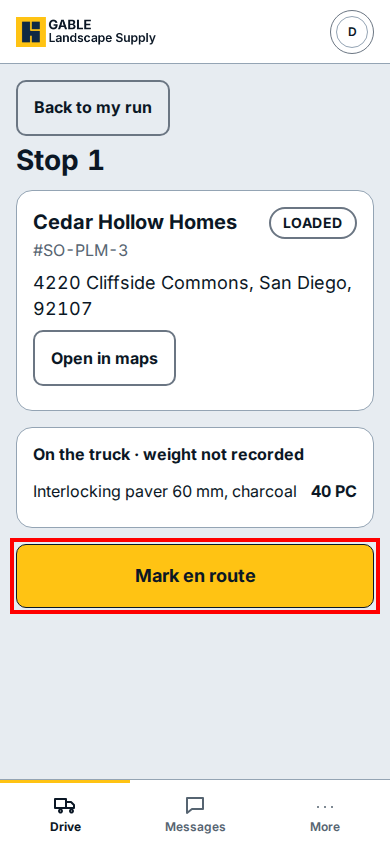
- When you arrive and unload at the site, tap Delivered on the stop screen to open the Proof of delivery sheet.
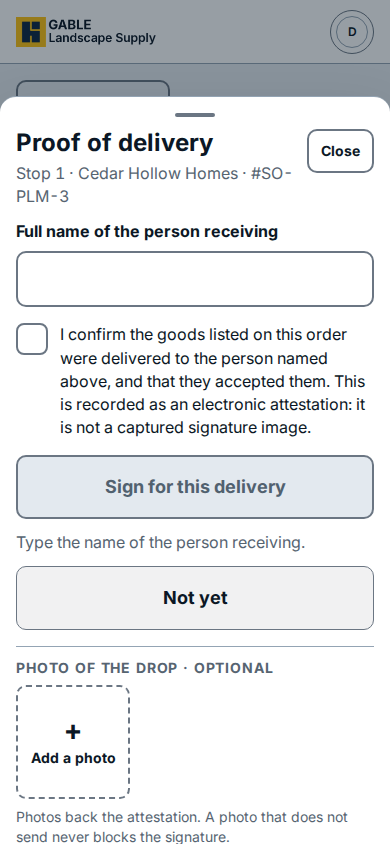
- Type the receiver's full name in Full name of the person receiving, and click Add a photo if you want to attach a photo of the drop.
- Tick the box beside I confirm the goods listed on this order were delivered to the person named above, and that they accepted them. This is recorded as an electronic attestation: it is not a captured signature image.
- Click Sign for this delivery to complete the stop.
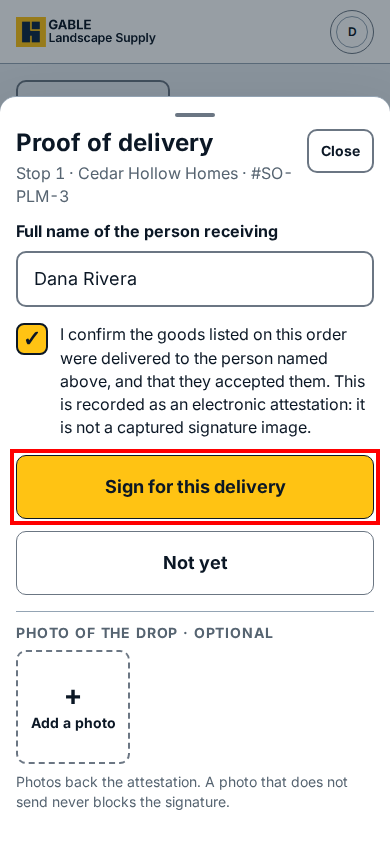
- If you cannot finish the drop right now, click Not yet or Close on the Proof of delivery sheet, or click Back to my run on the stop screen.
If you see this
- Type the name of the person receiving.: Sign for this delivery stays locked until you type a name in Full name of the person receiving and tick the confirmation box.
- Photos back the attestation. A photo that does not send never blocks the signature.: adding a drop photo is optional and never blocks Sign for this delivery when signal is weak.