Quotes in the field
When you work Quote Desk in the field on a phone sized screen.
Work Quote Desk on a phone sized screen
In the Outside Sales role, you work the same Quote Desk as the counter. The desk fills the screen directly: there is no device outline in this app.
- Open Quote Desk in the Outside Sales role (shown by the
OSaccount button at the top right). Below the top bar, the Quote Desk app frame with the Quotes tab fills the width of your screen.
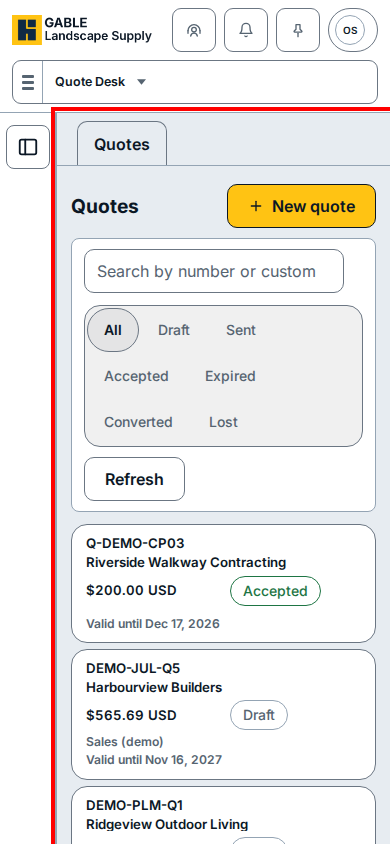
- Under the Quotes heading inside the app frame, click New quote to start a quote on site for the customer.
- Type a quote number or the customer's name in Search by number or customer to find an existing quote.
- Click a status button (such as Draft, Sent, or Accepted, or All) to filter the list, or click Refresh to reload it.
- Scroll the stacked quote cards and click a card to open the quote.
If you see this
- Quote Desk: shown in the surface selector bar above the Quotes tab; the app fills the screen with no handheld device outline.
- Accepted or Draft: shown as the status badge on each stacked quote card so you can check a quote's status at a glance in the field.