Trying the demo
When you want to walk the public demo as a role.
The demo landing page is the sign in for the public demo. There is no username or password: under Walk the demo as a role, pick a role card and you enter the yard as that person with sample data.
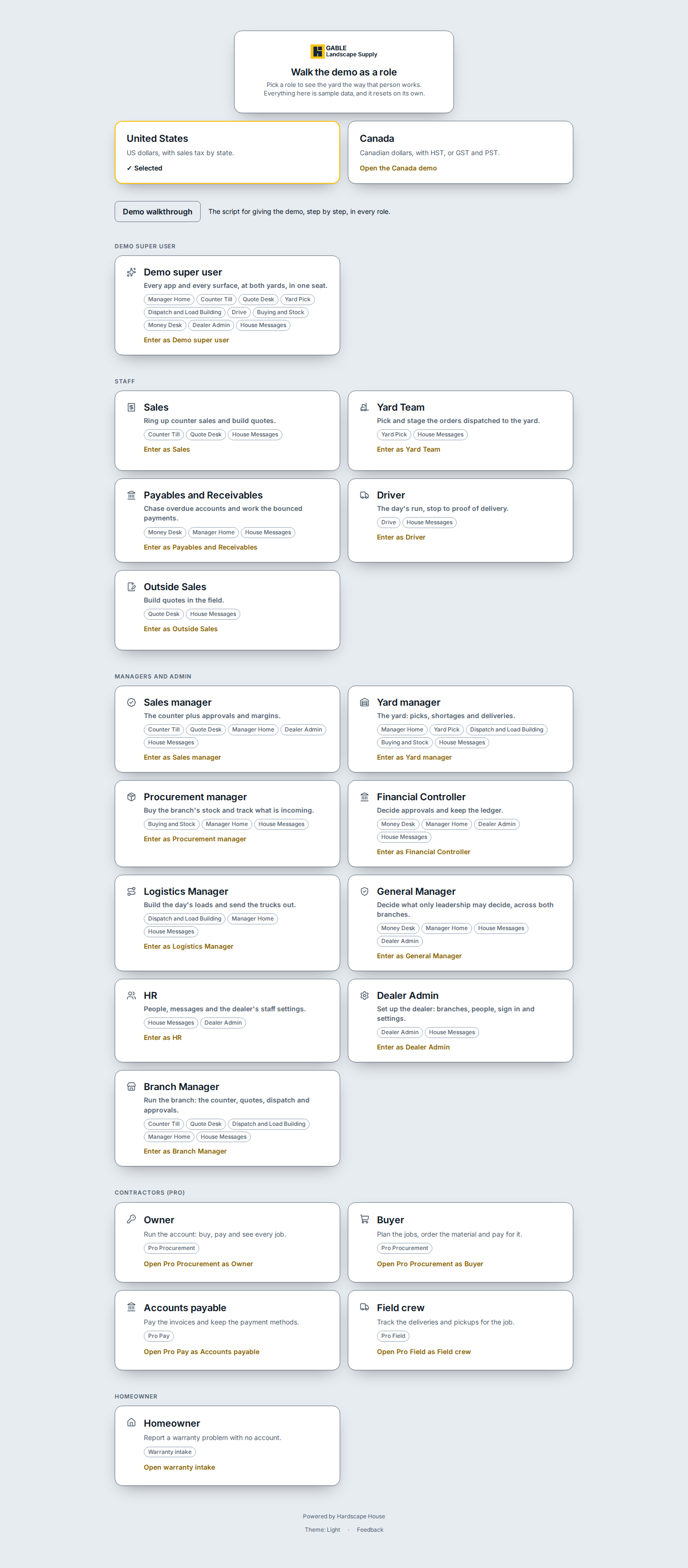
Pick a role card
- To open every app and surface across both yards from one card, click Demo super user.
- To try a yard staff role, click a card under Staff: Sales, Yard Team, Payables and Receivables, Driver, or Outside Sales.
- To try a manager or admin role, click a card under Managers and admin: Sales manager, Yard manager, Procurement manager, Financial Controller, Logistics Manager, General Manager, HR, Dealer Admin, or Branch Manager.
- To try the contractor apps outside the staff shell, click Owner, Buyer, Accounts payable, or Field crew under Contractors (Pro).
- To try the public warranty intake with no account, click Homeowner.
The Canada card, walkthrough, theme, and feedback
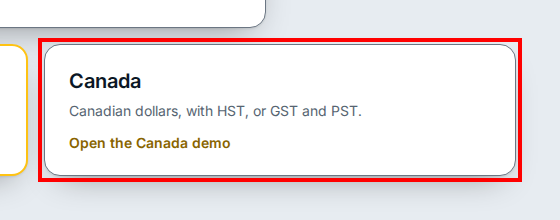
- To switch to the Canadian yards and tax rules, click the Canada card (Open the Canada demo).
- To read the step by step script for every role, click Demo walkthrough.
- At the bottom of the page, click Theme: Light to switch the colour theme, or click Feedback to send feedback.
If you see this
- Walk the demo as a role. You are on the demo landing page. Click any role card to enter.
- Theme: Light. The landing page is in light mode. Click it in the footer to switch to the brand theme.
- Demo walkthrough. Opens the guided script in place of an app. Use your browser back button to return to the role cards.