Working a yard and the handheld frame
When you open an app for your yard and choose its branch or screen size.
Pick which branch you are working
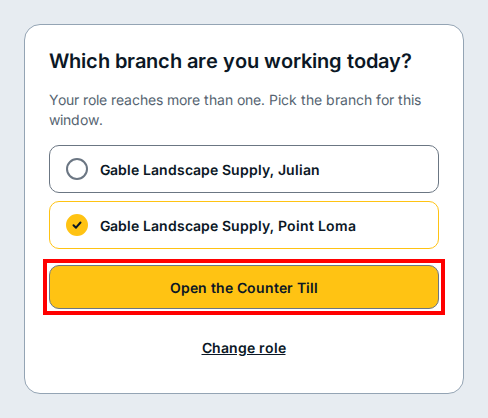
When your role reaches more than one branch at your yard, the app asks Which branch are you working today? before it opens. Each choice shows your dealer's name and the branch name.
- Click the row with your dealer's name and the branch you are working in this window.
- Click Open the Counter Till (or the open button for the app you picked).
- If you need to switch to a different role, click Change role below the button.
Resize the handheld frame on a desk screen
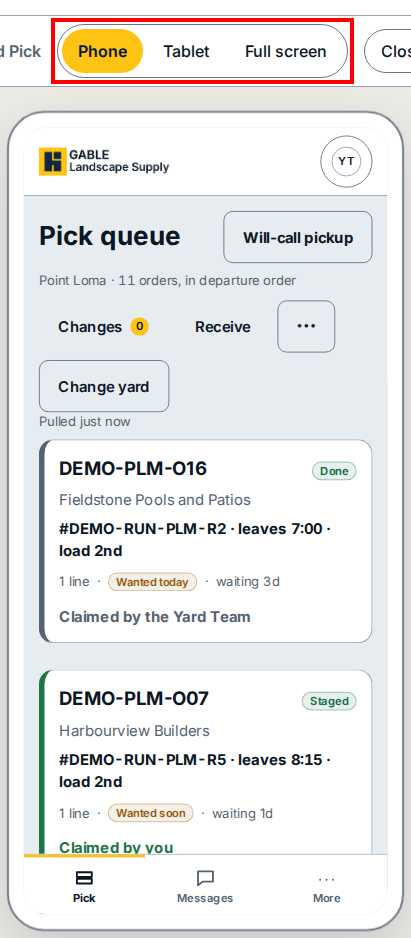
Yard Pick and Drive are built for a handheld in your yard or truck cab, so on a desk screen they open inside a device outline.
- Above the outline, click Phone or Tablet to preview the handheld size, or click Full screen to fill your desk window.
- Click the close button beside those choices to leave the framed view.
- Inside Pick queue, click Change yard to switch your yard.
If you see this
- Which branch are you working today? Your role works across more than one branch. Pick your yard and click Open the Counter Till.
- Full screen. Expands Yard Pick or Drive across the desk window in place of the Phone or Tablet outline.
- Change yard. Switches to another branch from inside Pick queue.